The two capture types
BeeMind has two capture flavors. Both work everywhere on macOS, and both can be triggered by a shortcut or by the Services menu.
- Default Capture saves the selected text as a regular note. Use this for quotes, ideas and snippets you want to keep.
- Action Capture saves the selected text as an action item. Use this for to-dos, follow-ups and reminders that need a decision later.
Capture with a keyboard shortcut
BeeMind ships with two global shortcuts. They work in any app, on any selection of text.
- ⌃⌘B Default Capture: save the selection as a note.
- ⌃⌘A Action Capture: save the selection as an action item.
Customize the shortcuts
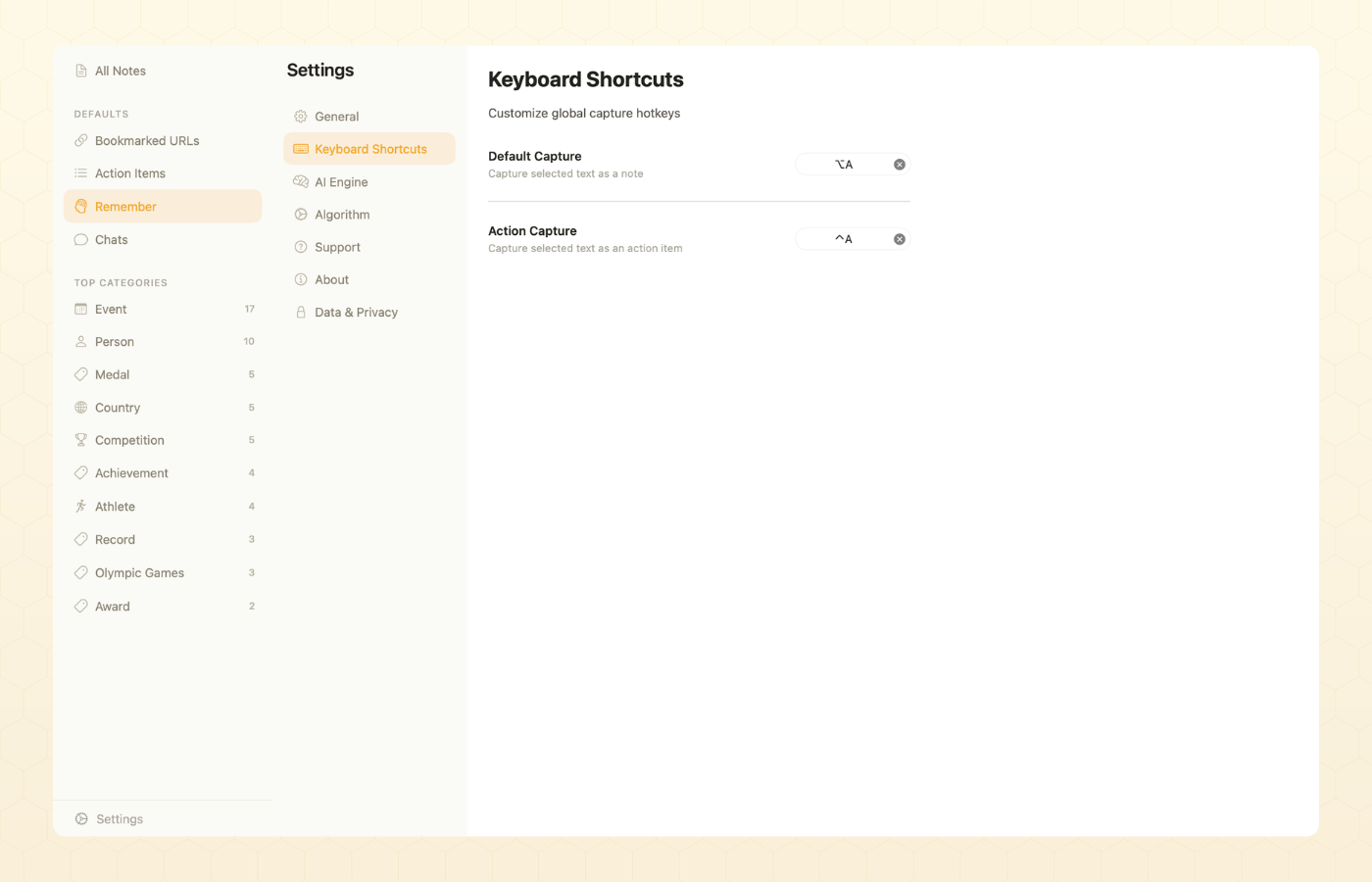
Both shortcuts can be changed from BeeMind settings, or removed if they conflict with another app.
- Open BeeMind on your Mac.
- Go to Settings and pick the Keyboard Shortcuts tab.
- Click the shortcut field next to Default Capture or Action Capture and press the new key combination.
- To remove a shortcut, click the × button next to it.
Capture from the Services menu
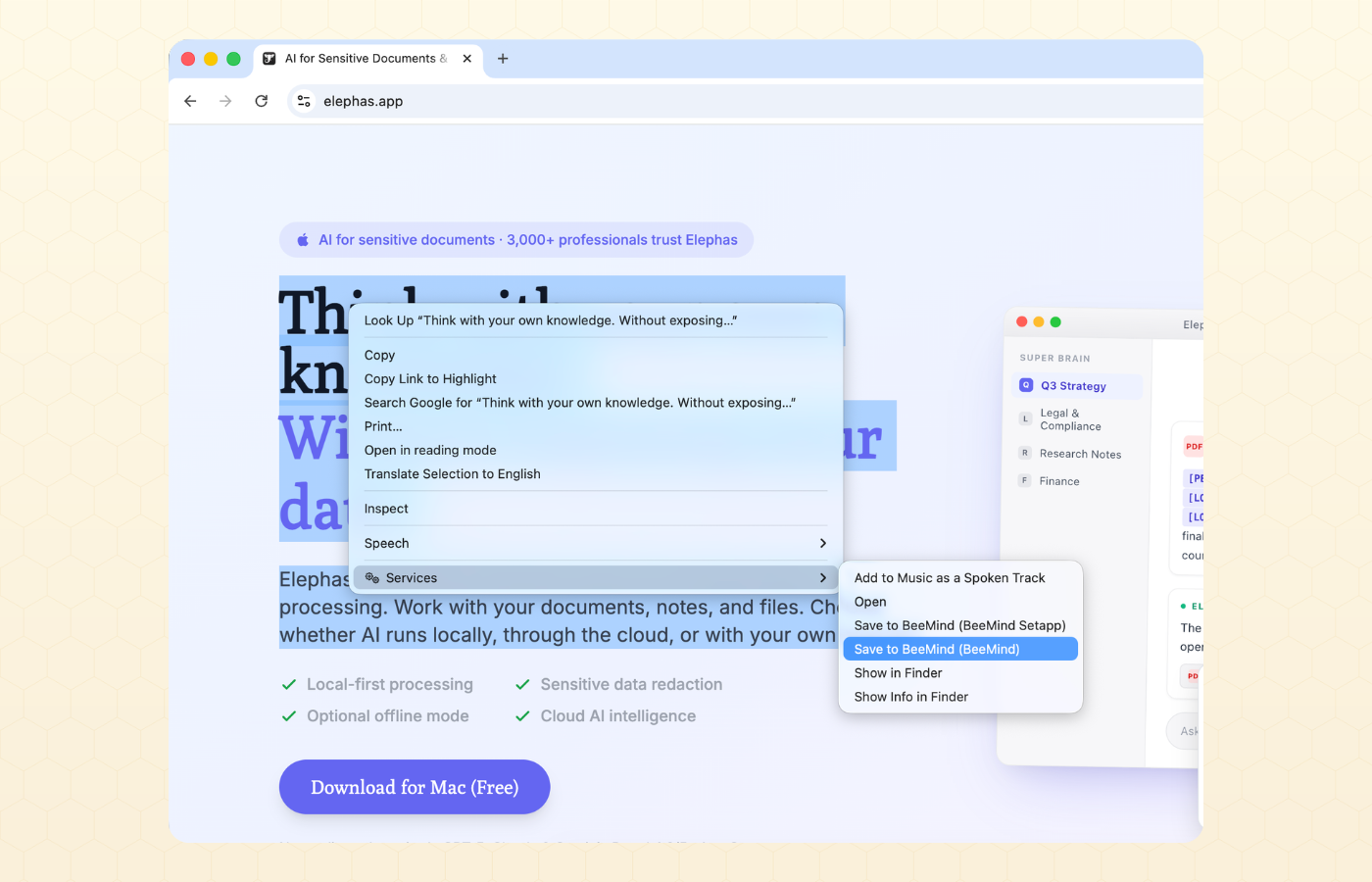
macOS exposes BeeMind through the Services menu, which means you can capture from Safari, Mail, Notes, Pages and most other apps without leaving the keyboard.
- Select the text you want to save.
- Right-click (or two-finger click) and hover over Services at the bottom of the menu.
- Pick Save to BeeMind.
On Safari, the Services menu also picks up the page link, so saving a quote keeps the source URL alongside it.
Two BeeMind entries in the menu?
If you see both Save to BeeMind and Save to BeeMind (Setapp), it means both builds of the app are installed. macOS lists every app that registered the same Service.
To clean this up, decide which build you want to keep:
- If you pay for Setapp, keep the Setapp build and delete the direct-download copy from
/Applications. - If you bought BeeMind through the website, keep that copy and uninstall the Setapp version from inside the Setapp app.
Once only one build is left, restart your Mac so the Services menu rebuilds, and the duplicate entry will disappear.
Where do captures go?
Anything you capture lands in your BeeMind library on the same Mac. With a Pro plan active, the same notes also show up in BeeMind on iPhone and iPad within a few seconds. On the Free plan, the Mac and iOS libraries stay separate. See Plans and Sync for the details.
Capture is not working
- The shortcut does nothing. Open System Settings > Privacy and Security > Accessibility and make sure BeeMind is enabled. Some apps block global shortcuts until accessibility is granted.
- Save to BeeMind is missing from the Services menu. Open BeeMind once, then check System Settings > Keyboard > Keyboard Shortcuts > Services and tick the BeeMind entries.
- Nothing happens after picking the Service. Confirm BeeMind is running. The Services menu launches the app on demand, but the very first capture after a reboot can take a couple of seconds.